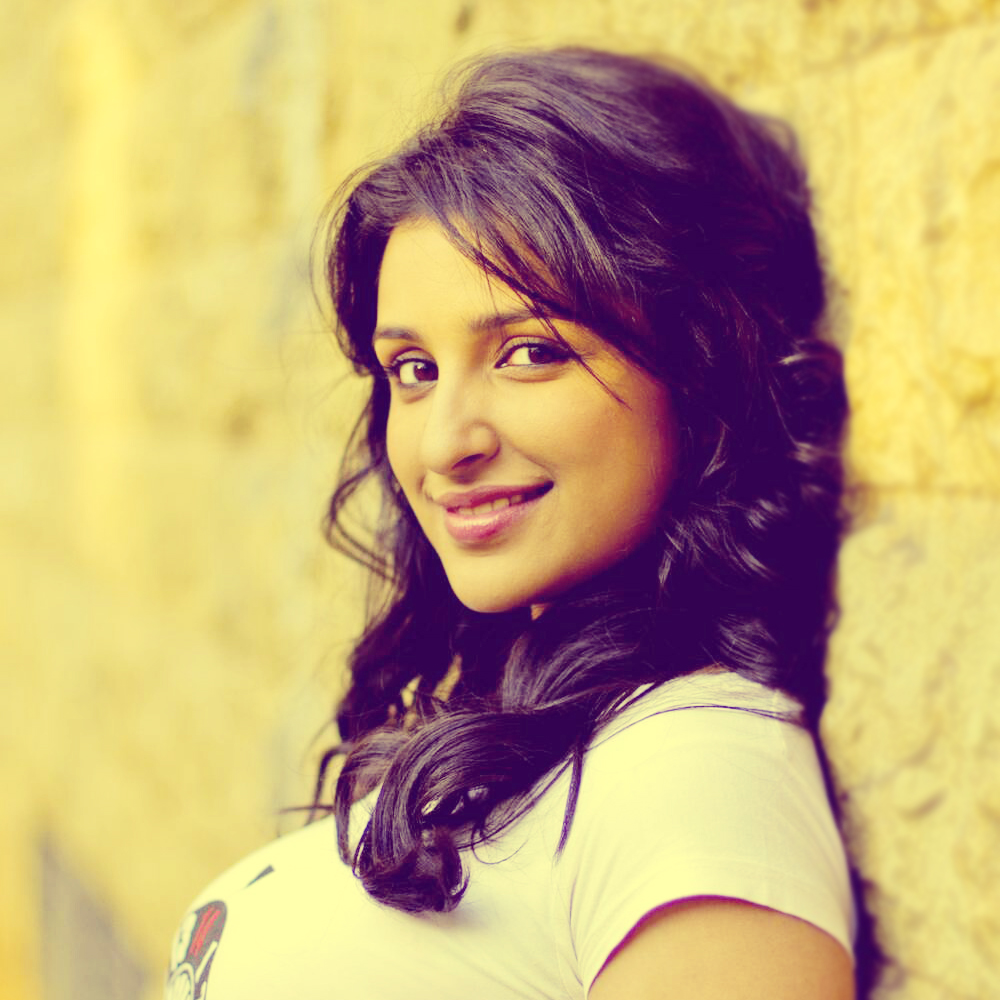
Easy Retro Style Fashion Touch
Easy Retro Style Fashion Touch
Final view

Step 1:
Take a image/photo to edit.

Take a image/photo to edit.
Step 2:
Press Ctrl+M (Curves), increase brightness of the photo.
Set Input = 113 and Output to 150.

Hit OK.
Step 3:
Make a New Layer (Ctrl+Shft+N).
Fill it with white color (Shft+f5 ---> Color ----> Select white color ---> OK).
And set the Mode Of this Layer To "Soft Light"

Step 4:
Again make a New Layer (Ctrl+Shft+N).
Fill it with Blue color (Shft+f5 ---> Color ----> Select Blue color ---> OK).
And set the Mode Of this Layer To "Lighten" and Opacity to "45%".

Your Layers will be like this.

Instate of Blue You can Use any color..
Some sample --


Done..!!